
Automate Vendor Invoice Processing Without Giving Up Accounting Control
Receive invoices by email or upload, extract invoice information with AI, validate it against GoldFinch vendors, purchase orders, receipts, and accounting records, and create a draft Purchase Invoice for review, all within Salesforce.
GoldFinch automates document entry and validation while keeping your AP team responsible for review, approval, and posting.
THE PROBLEM
Reading an invoice is only the first step.
Basic OCR can recognize text, but accounts payable requires more than copying fields from a document. Invoice information must be matched to the correct vendor, purchase order, receipt, item, quantity, price, tax treatment, currency, and accounting dimensions.
GoldFinch combines AI-assisted extraction with ERP validation and controlled accounting workflows.
Receive
Email or upload
Extract
AI reads fields
Validate
Matched to records
Draft invoice
Ready for review
HOW IT WORKS
How GoldFinch AI invoice automation works.
1. Receive the Invoice
Forwarded by email or uploaded through the console. An OCR Request with the source, attachment, and status is created.
2. Extract With AI
Vendor, invoice number, PO number, line items, quantities, taxes, totals.
3. Validate Against Records
Matched to vendor, PO, and receiving records, with duplicate checks applied.
4. Resolve Exceptions
Correct values in the OCR Result Editor and retry record creation. No re-extraction needed if the read was correct.
5. Draft Invoice
Created for AP review, approval, and posting under your accounting controls.
TWO INVOICE PATHS
Handle PO-based and non-PO invoices.
Matched to purchasing and receiving activity.
Connect an invoice to the applicable purchase order and receiving activity. Review differences in quantities, prices, freight, taxes, and other values before posting.
Routed through coding and approval.
Capture invoices that do not originate from a purchase order and route them through the appropriate coding, review, and approval process.
NO STARTING OVER
Manage exceptions without starting over.
GoldFinch keeps the original document, extracted values, validation status, and resulting record connected. Users can understand whether a problem comes from:
FLAGGED
Re-extract
The AI misread the document. Run extraction again.
Correct & Retry
The document was read correctly, but a value didn’t match a GoldFinch record. Fix it in the OCR Result Editor and retry record creation.
ONE WORKSPACE
One console for invoice review.
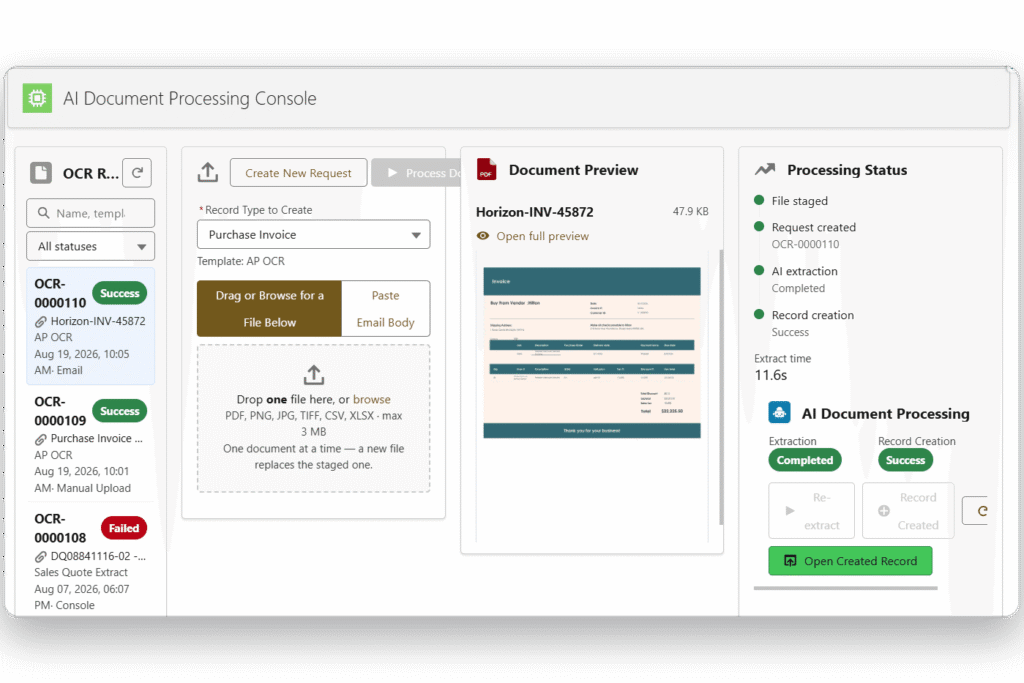
The AI Document Processing Console gives AP users a central workspace.
OCR requests list – track every incoming request and its status
Processing status panel – monitor extraction and record creation live
Open created record – jump straight to the resulting Purchase Invoice

SAME ENVIRONMENT
AP automation connected to your accounting system.
GoldFinch performs document processing within the same environment used for purchasing, receiving, vendor records, Purchase Invoices, approvals, and financial reporting. This connection helps your team:
- 1Validate invoices against live records
Current POs, receipts, and vendor data, not a nightly export.
- 2Keep every invoice’s history connected
The source document, extracted values, and payment history stay linked.
- 3Use the access rules you already have
Salesforce permissions control who uploads, corrects, approves, and posts.
- 4Report on AP without reconciling
Open invoices and approvals appear alongside your other financials.
ONE SALESFORCE ORG
PURCHASE INVOICE
PI-01042
RELATED RECORDS
Nothing to sync. Nothing to reconcile.
CONTROLS
Approval Stays With Your Team.
GoldFinch AI assists the AP team; it does not replace financial responsibility or internal controls. Your organization determines:
Every AI-created draft should be reviewed according to your accounting policies before posting or payment.
SET EXPECTATIONS
What to expect from AI extraction.
AI accuracy depends on document quality, layout, language, and completeness. GoldFinch is designed to make the result reviewable and correctable rather than pretending every invoice can be processed without human involvement.
For Best Results
- ✓Use clear, machine-readable PDFs or high-quality images
- ✓Confirm vendor and purchasing master data are maintained correctly
- ✓Review low-confidence or unusual values
- ✓Retain human review before posting
Avoid Submitting
- ×Password-protected files
- ×Handwritten invoices
- ×Poor-quality scans
COMMON QUESTIONS
Frequently asked questions.
See GoldFinch AP Automation With Your Invoice Workflow
Schedule a demonstration based on your current invoice sources, purchasing process, approval requirements, and exception volume.
What you’ll see:
- Invoices received by email and turned into requests
- Header and line details extracted by AI
- Validation against vendor, PO, and receiving records
- An exception caught and resolved without re-extracting
- A draft Purchase Invoice ready for review and posting